Claude Code Remote Control: Setup and Fixes
Claude Code Remote Control lets you drive a local session from claude.ai/code or the Claude app. Setup, requirements, common error fixes and alternatives.
This guide is written by the Super Agent team. We build one of the alternatives covered below, and Super Agent is built on the Super-Agent design DeepSeek published, so we have a stake in the topic. Everything about Remote Control itself comes from Anthropic's documentation.
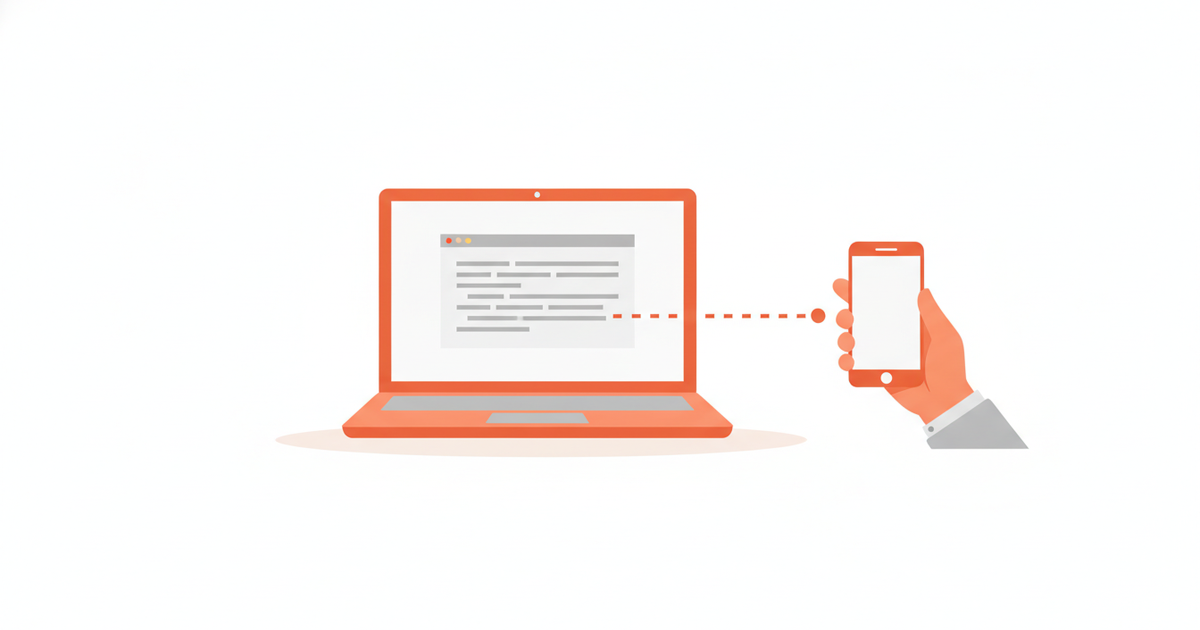
Claude Code Remote Control connects claude.ai/code or the Claude mobile app to a Claude Code session that keeps running on your own machine. According to Anthropic's Remote Control documentation, the web and mobile interfaces are "a window into that local session, so your computer has to stay on and the claude process has to keep running." You start a task at your desk and keep steering it from your phone or another browser, while code execution and file access stay local.
Key Takeaways
Remote Control drives a Claude Code session that runs, and must keep running, on your machine.
It needs a Pro, Max, Ultra, Team or Enterprise plan; API keys are not supported.
Start it with
claude remote-control,claude --remote-controlor/remote-control.Common causes of errors include the wrong login type, an API key or custom base URL, and organization policy.
Cloud sessions, SSH with tmux, or a multi-agent workspace cover what it doesn't.
What is Claude Code Remote Control?
Remote Control is a built-in Claude Code feature that lets you continue a local session from any device. The session never moves: Claude keeps running on your machine, so your filesystem, MCP servers, tools and project configuration all stay available, and typing @ still autocompletes local file paths.
A few things make it more than a remote viewer:
- Both surfaces work at once. The conversation stays in sync across your terminal, browser and phone, and you can send messages from any of them.
- You can attach files. Photos go straight to Claude. Other files download to your machine and arrive as
@file references. - It survives interruptions. If your laptop sleeps or the network drops, Claude Code reconnects when the machine comes back online.
That's the main difference from a cloud session, which uses the same claude.ai/code interface but executes on cloud infrastructure, Anthropic-managed by default.
Requirements for Remote Control
You need an eligible claude.ai subscription and a claude.ai login. The documented requirements are:
- Plan: Pro, Max, Ultra, Team or Enterprise. API keys are not supported.
- Team and Enterprise: an Owner must first enable the Remote Control toggle in Claude Code admin settings. Organizations with Zero Data Retention or the HIPAA configuration can't enable it, and Enterprise members on custom roles need both the cloud sessions permission and the Claude Code remote control permission.
- Login: run
claudeand use/loginto sign in through claude.ai. - Direct Anthropic API: Remote Control isn't available on Amazon Bedrock, Google Cloud's Agent Platform or Microsoft Foundry, or when
ANTHROPIC_BASE_URLpoints at a gateway or proxy instead ofapi.anthropic.com. - Feature flags: setting
CLAUDE_CODE_DISABLE_NONESSENTIAL_TRAFFICorCLAUDE_CODE_DISABLE_FEATURE_FLAGSmakes it unavailable.
How to set up Claude Code Remote Control
There are three ways to start Remote Control from the CLI, plus a slash command in VS Code and the Claude Desktop app. Pick the one that matches how you already work.
Option 1: Server mode with claude remote-control
Server mode keeps a process running in your terminal that waits for remote connections and can serve several sessions. In your project directory, run:
claude remote-control
claude rc is an alias. The first time, you accept a one-time confirmation. The terminal then shows a URL, and pressing spacebar shows a QR code for your phone. Useful flags:
| Flag | What it does |
|---|---|
--name "My Project" | Sets the session title shown in the session list at claude.ai/code |
--capacity <N> | Maximum number of concurrent sessions. Default is 32 |
--spawn same-dir | All sessions share the current directory, so they can conflict if they edit the same files |
--spawn worktree | Each on-demand session gets its own git worktree |
--spawn session | Serves exactly one session and rejects additional connections |
--permission-mode <mode> | Sets the starting permission mode, such as acceptEdits |
While the server runs in same-dir or worktree mode, press w to switch between them. If several remote sessions will edit the same repository, use worktree mode so they don't step on each other's files. It requires a git repository or a WorktreeCreate hook.
Option 2: An interactive session with --remote-control
This gives you a normal interactive session that is also available remotely, so you can keep typing locally:
claude --remote-control "My Project"
--rc is the short form, and the name is optional.
Option 3: /remote-control inside an existing session
Already in a session? Type /remote-control (or /rc), optionally followed by a name. It carries over your current conversation history. While connected, the terminal shows an /rc active indicator, and running /remote-control again opens a status panel with the URL, a QR code and a disconnect option.
In the VS Code extension and the Desktop app's Code tab, type the same /remote-control or /rc in the prompt box. VS Code doesn't accept a name argument or show a QR code; the session appears in the list at claude.ai/code.
Connect from another device
Once a session is active, you can open the URL Claude Code displays in any browser, scan the QR code to open it in the Claude app, or find the session by name in the session list at claude.ai/code or under Code in the mobile app. Online sessions show a computer icon with a green dot. If you don't have the app yet, /mobile shows a QR code for claude.ai/mobile.
Turn it on for every session
To connect automatically, run /config and set Enable Remote Control for all sessions to on, or set remoteControlAtStartup to true in ~/.claude/settings.json. Each interactive process then registers its own remote session.
Resume after stopping the server
When you stop claude remote-control with Ctrl+C, run claude remote-control again in the same directory to bring its sessions back, or use --continue or --session-id <id> for a single session. Anthropic says these commands "work for about four hours after the server stopped." For sessions started with --remote-control or /remote-control, use claude --continue or claude --resume.
Is Remote Control secure?
Remote Control doesn't open any inbound ports. Your local session makes outbound HTTPS requests only, registers with the Anthropic API and polls for work. Traffic travels over TLS, and the connection uses multiple short-lived credentials, each scoped to one purpose.
While connected, the session transcript is stored on Anthropic servers to keep devices in sync. Execution and filesystem access stay on your machine.
Trusted Devices adds a second gate. When it's on, viewing or steering a session requires an enrolled device and a sign-in no more than 18 hours old, refreshed with Face ID, Touch ID, Windows Hello or a passkey. It's off by default: Pro, Max and Ultra users turn it on in their own settings, and Owners turn it on for Team and Enterprise organizations.
Limitations to know before you rely on it
The main limit is that everything depends on your local process. Anthropic lists these in its Limitations section:
- The local process must keep running. Close the terminal, quit VS Code or the Desktop app, or stop
claude, and the session goes offline. On a remote machine over SSH, Anthropic suggests startingclaudeinsidetmuxorscreen. - One remote session per interactive process. Use server mode for several concurrent sessions from one process.
- Network outages end server mode. If the machine is awake but offline, server mode "gives up after roughly 10 minutes" and the process exits. Interactive sessions keep retrying until the network returns.
- HTTP 403 refusals. Once an interactive session is connected, Claude Code retries "for up to three minutes" after a 403, such as after a VPN or network change, before disconnecting.
- Heartbeat failures. If a session disconnects with
could not reach the Remote Control server for about 30 minutes, run/remote-controlto reconnect. - Forwarded dialogs expire. Permission prompts stay open until you answer, but other forwarded dialogs wait "five minutes by default" before taking the no-action default. The
dialogExpirysetting changes this. - Some commands are local-only.
/pluginand/resume, for example, only work from the local CLI.
Claude Code Remote Control not working? Common errors and fixes
Common causes include the login type, an environment variable, or an organization policy. When an error isn't obvious, run claude doctor to see which eligibility check failed. Here are six of the messages in Anthropic's troubleshooting section.
"Remote Control disconnected" or "Can't reach"
Your browser or app lost contact with Claude Code on your computer. An interactive session reconnects on its own once the machine is awake and online. If Claude Code isn't running, run claude remote-control in the same directory for a server, or claude --continue for an interactive session.
"Remote Control requires a claude.ai subscription"
You're signed out, or an API key or token is overriding your login. Run claude auth login and choose the claude.ai option, then remove ANTHROPIC_API_KEY, ANTHROPIC_AUTH_TOKEN or an apiKeyHelper setting wherever it's set.
"Remote Control isn't enabled for this account"
The usual cause is cached entitlements that are out of date after a plan change. Run claude auth logout, then claude auth login, and update Claude Code if your version is old.
"Remote Control is only available when using Claude via api.anthropic.com"
The session is routed through Bedrock, Google Cloud's Agent Platform, Microsoft Foundry, or a custom ANTHROPIC_BASE_URL. If you have an eligible claude.ai login, unset the variable the message names and restart the session.
"Remote Control is disabled by your organization's policy"
A policy blocks it. If the message mentions disableRemoteControl, remove that key from your settings files, or ask your administrator if it's in managed settings. If you're on Pro, Max or Ultra, you may still be signed in under an old Team or Enterprise organization, so log out and back in. Otherwise an Owner needs to enable the Remote Control toggle, unless your organization uses Zero Data Retention or the HIPAA configuration, or your custom roles are missing a permission (see Requirements).
"Remote credentials fetch failed"
Claude Code couldn't get a short-lived credential, often because a firewall or proxy blocks outbound HTTPS to the Anthropic API on port 443. Start with claude --remote-control --debug-file claude-debug.log and search the log for code-session to see the full error.
Claude Code Remote Control alternatives
Remote Control is the official, built-in option for steering a Claude Code session from another device. It's a weaker fit when your laptop can't stay on, when you run more than one kind of coding agent, or when you want to see work on several computers in one place rather than per machine.
If you're weighing a full personal agent such as OpenClaw, our guide to OpenClaw alternatives for developers who run coding agents compares the options that keep Claude Code as the worker.
Claude Code cloud sessions
If the work shouldn't depend on your laptop, a cloud session runs on cloud infrastructure instead. Anthropic recommends it for starting tasks with no local setup, repos you haven't cloned, and running multiple tasks in parallel. The trade-off is that anything that exists only on your machine, such as local MCP servers and tools, isn't there.
SSH plus tmux
The classic setup is to run Claude Code inside tmux on your machine, then SSH in from a laptop or phone terminal app and reattach. It works with any terminal tool and any login method Claude Code supports, including API keys. The catch is that you need a way to reach the machine over SSH, and a phone keyboard in a terminal is clumsy.
Super Agent (ours)
Super Agent is for running several coding agents across several computers. You connect each computer with the open-source crewbot connector, then create bots for Claude Code, Codex or Grok, each with its own computer and project folder, all in one browser workspace. Edits and commands that need permission appear for approval on any device. Your computer still has to be on. Pro ($14.90/month) adds an assistant that hands requests to the right bot and can be reached on WeChat and Telegram.
Comparison at a glance
| Remote Control | Cloud sessions | SSH + tmux | Super Agent | |
|---|---|---|---|---|
| Where Claude runs | Your machine | Cloud infrastructure | Your machine | Your computers |
| Computer must stay on | Yes, with claude running | No | Yes | Yes |
| Agents | Claude Code | Claude Code | Any terminal tool | Claude Code, Codex, Grok |
| Parallel work | Server mode runs concurrent sessions | Suited to parallel tasks | One tmux window per task | Many bots across several computers |
| Network | Outbound HTTPS only | Nothing local | Machine must be reachable over SSH | One outgoing connection, no listening port |
| Setup | Built in, one command | No local setup | Manual | npx crewbot start (Node.js 22+), then link in browser |
Frequently Asked Questions
Does Claude Code Remote Control work with an API key?
No. Remote Control needs a claude.ai login on a Pro, Max, Ultra, Team or Enterprise plan, and API keys are not supported. If ANTHROPIC_API_KEY is set, remove it and run claude auth login.
Does my computer need to stay on?
Yes. The session runs on your machine, so the computer must stay on and the claude process must keep running. Claude Code reconnects after sleep or a network drop (server mode exits after roughly 10 minutes offline).
Can I use Remote Control with Codex?
No. Remote Control is a Claude Code feature.
Conclusion
Claude Code Remote Control is the built-in way to keep a local Claude Code session going from your phone or another browser: sign in with an eligible plan, run claude remote-control or /remote-control, and connect by URL or QR code. When it breaks, check your login, environment variables and organization settings first. If you run several agents across several computers, try Super Agent free and connect your first computer with one command.